

Sub-sessions
Admins and managers can create sub-sessions within a parent session to divide a large session into smaller zones, each with its own geofence radius.
Overview
Section titled “Overview”- Sub-session geofence radii must fall within the parent session boundary.
- A worker can only be assigned to one sub-session at a time.
- Casual workers can check in and work within sessions that contain sub-sessions, but cannot create or manage them.
- Sub-sessions are fully optional - the system functions normally without them.
Check-in Geofence Logic
Section titled “Check-in Geofence Logic”When sub-sessions are configured for a session, the check-in geofence rules change for casual workers:
| Scenario | Check-in requirement |
|---|---|
| No sub-sessions | Worker must be within the session geofence |
| Sub-sessions exist | Worker must be within their assigned sub-session’s geofence |
Being inside the parent session boundary alone is not sufficient when sub-sessions are in use. The worker’s location must fall within their specific sub-session’s geofence before check-in unlocks on their device.
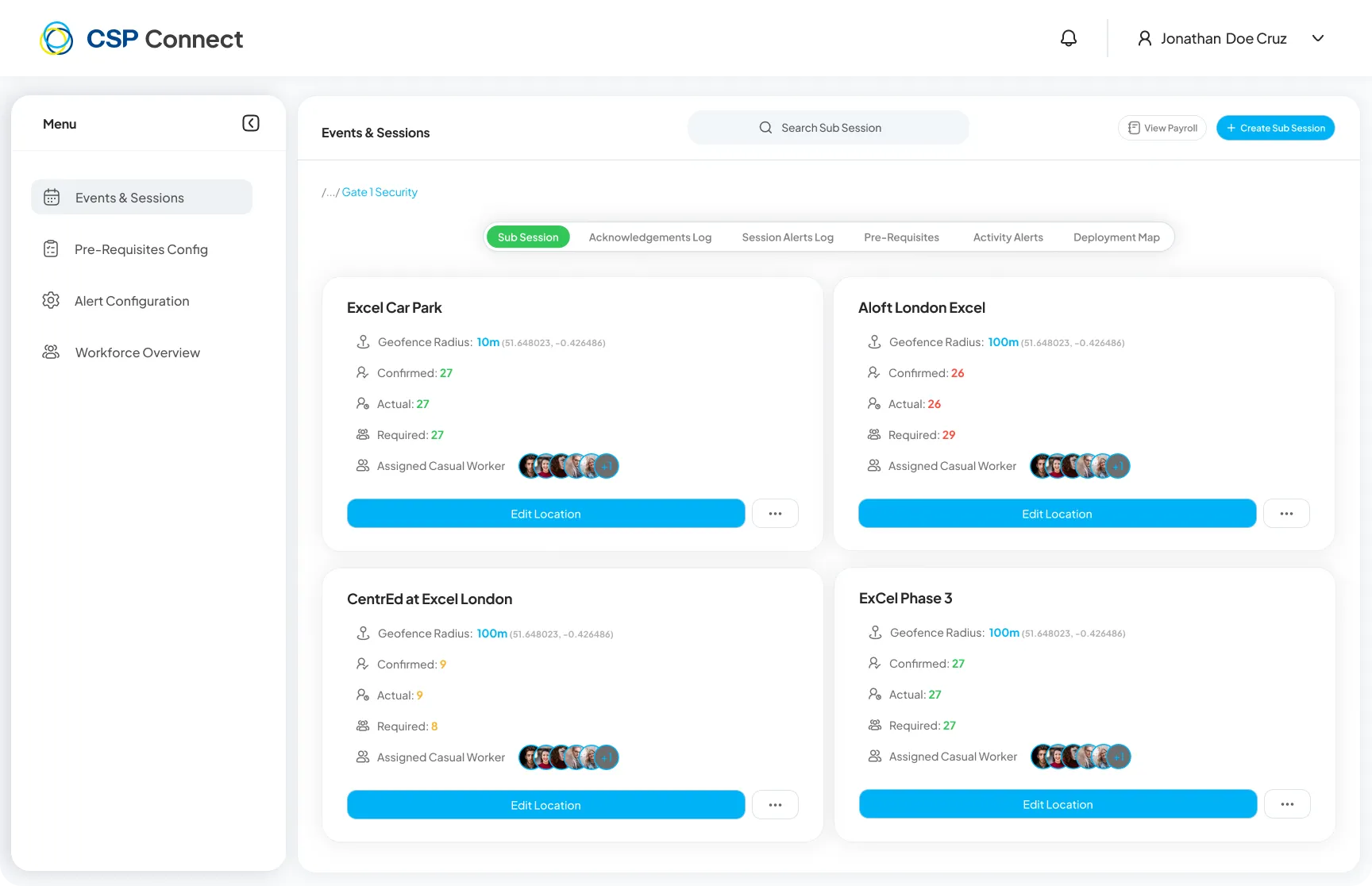
Each sub-session card displays its geofence radius, confirmed/actual/required worker counts, and assigned casual workers.
Creating a Sub-session
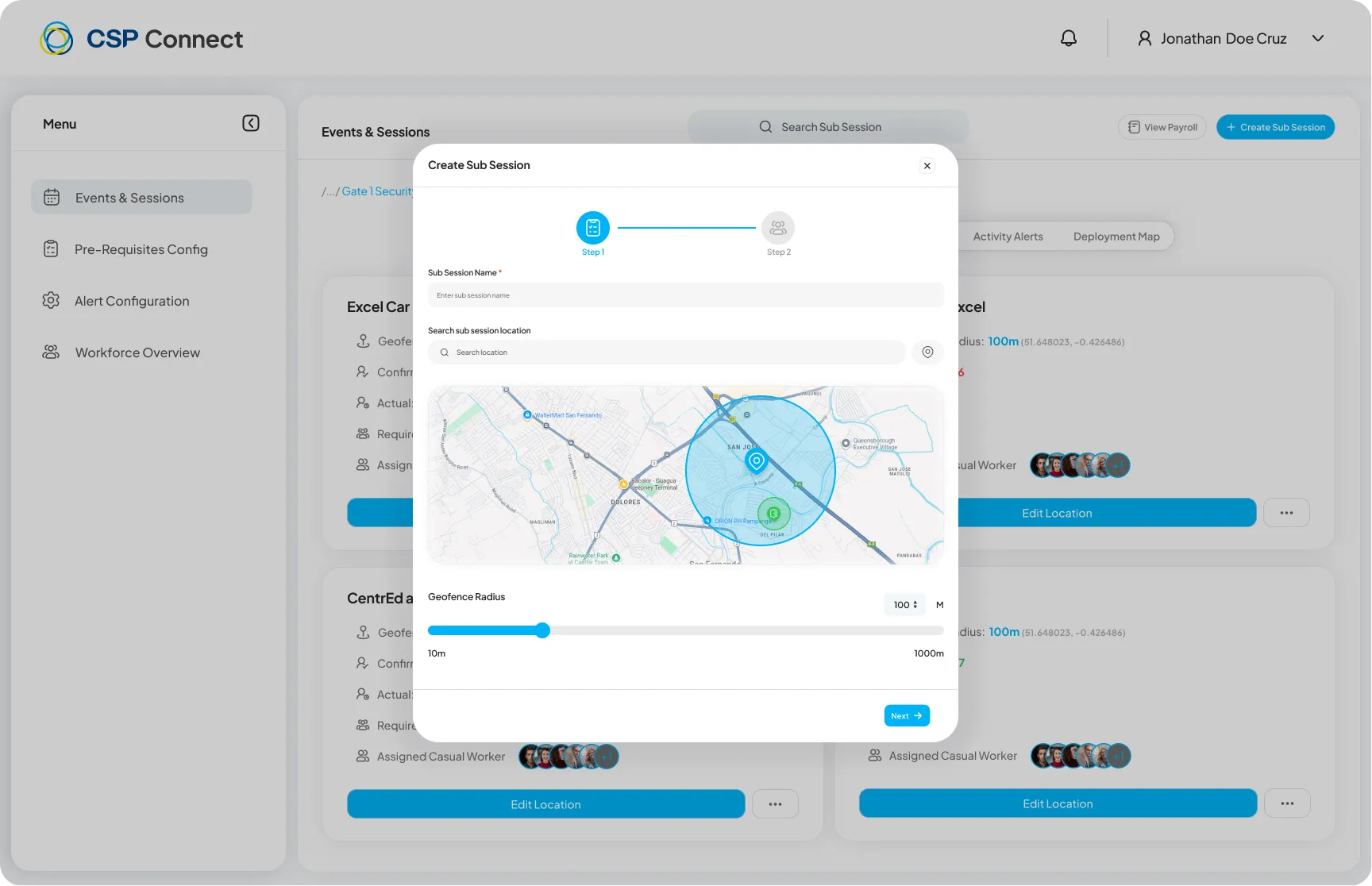
Section titled “Creating a Sub-session”Click + Create Sub Session from the session view to open the creation wizard.
-
Set Location & Geofence
Search for a venue location and set the geofence radius using the slider. The geofence boundary must fall within the parent session boundary.
-
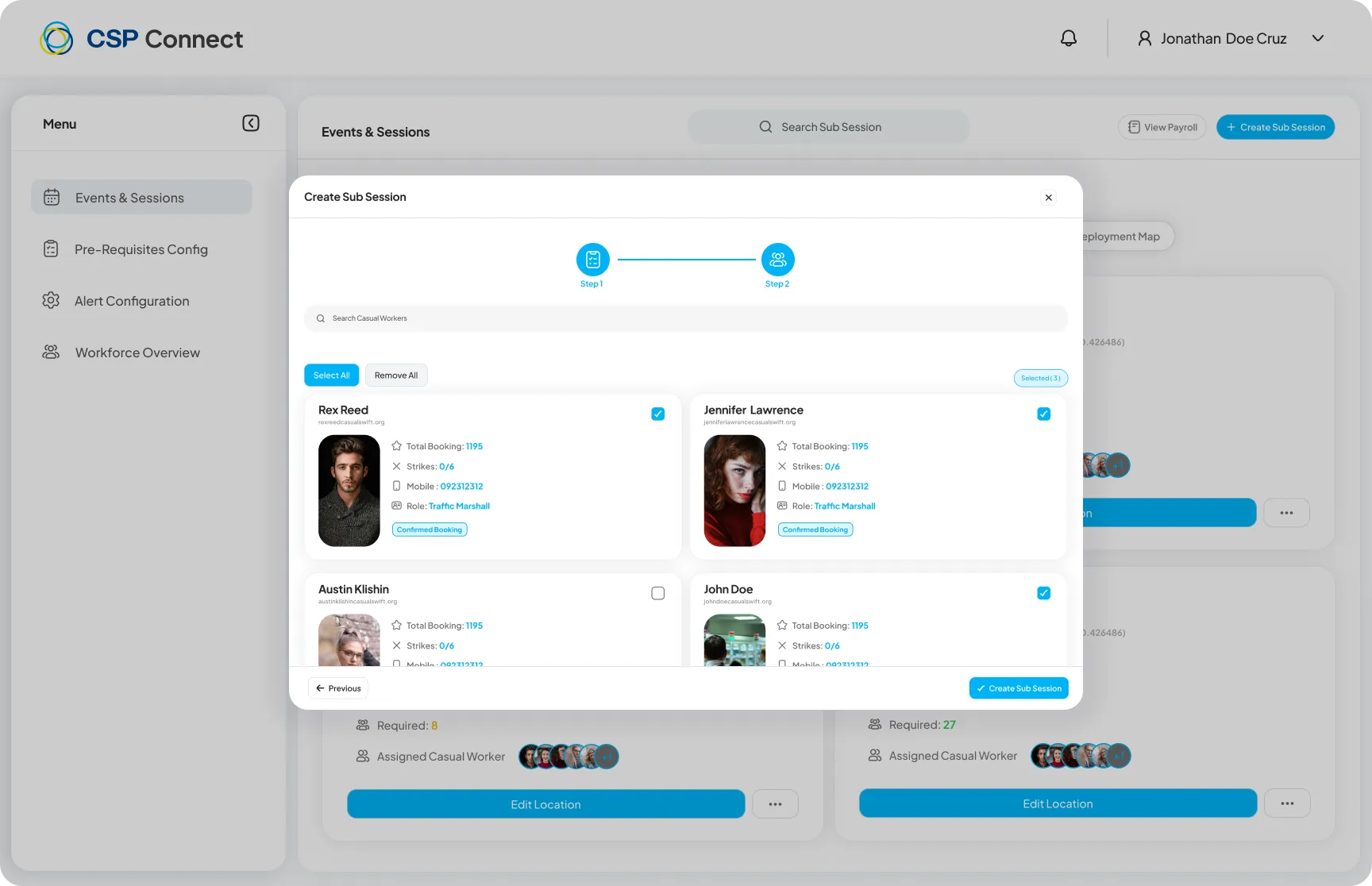
Assign Casual Workers
Select workers from the session pool to assign to this sub-session, then click Create Sub Session to confirm.
Editing a Sub-session Location
Section titled “Editing a Sub-session Location”Click Edit Location on any sub-session card to update its venue location and geofence radius.
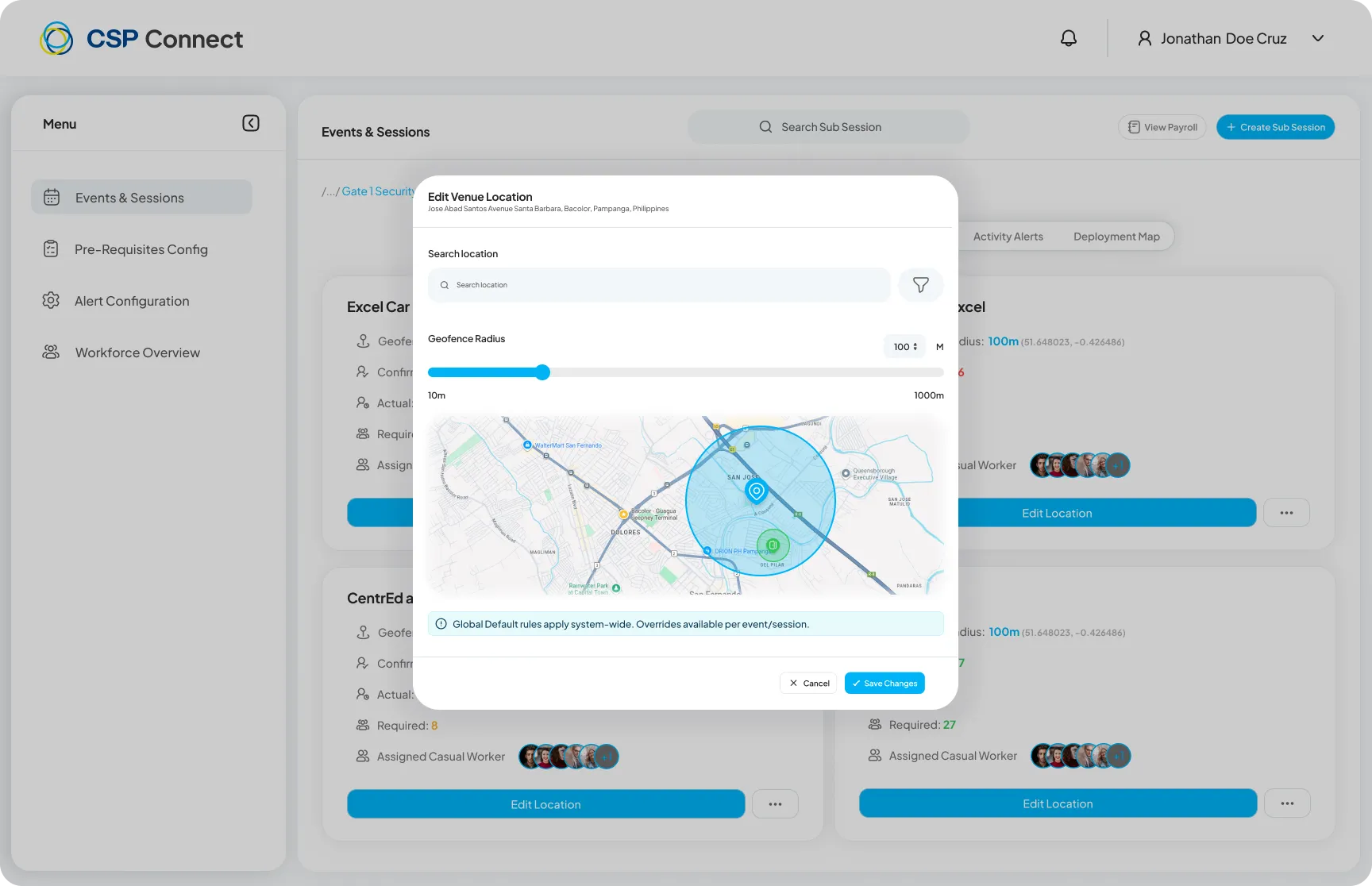
Enable Global/Default to apply the same location and geofence across all sessions in the event.
Viewing Assigned Workers
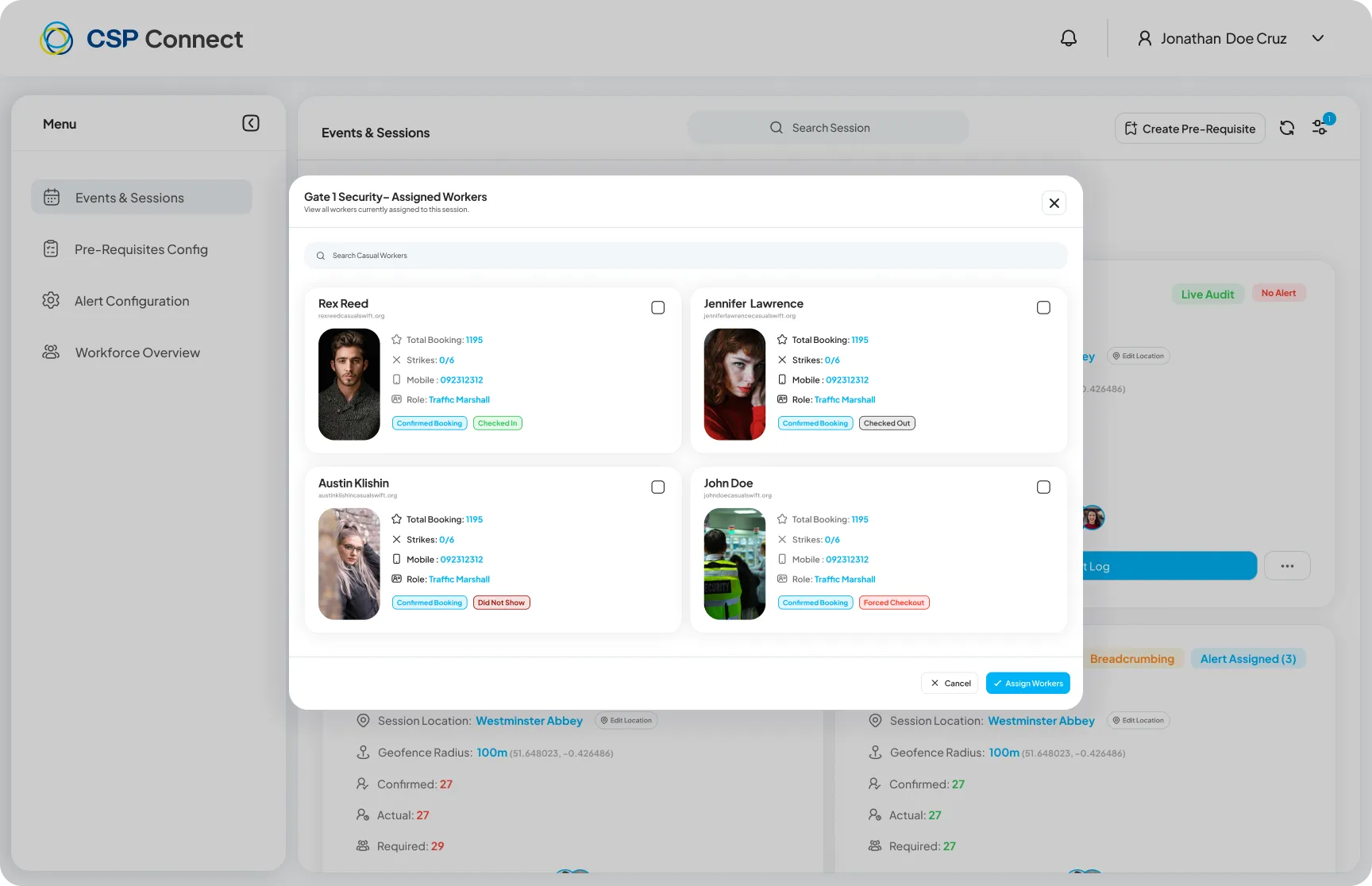
Section titled “Viewing Assigned Workers”Click the assigned worker avatars on a sub-session card to view the full list of workers assigned to that sub-session.
Acknowledgements Log
Section titled “Acknowledgements Log”The Acknowledgements Log tab displays all staff pre-requisite acknowledgements for the session, including submission status and timestamps.
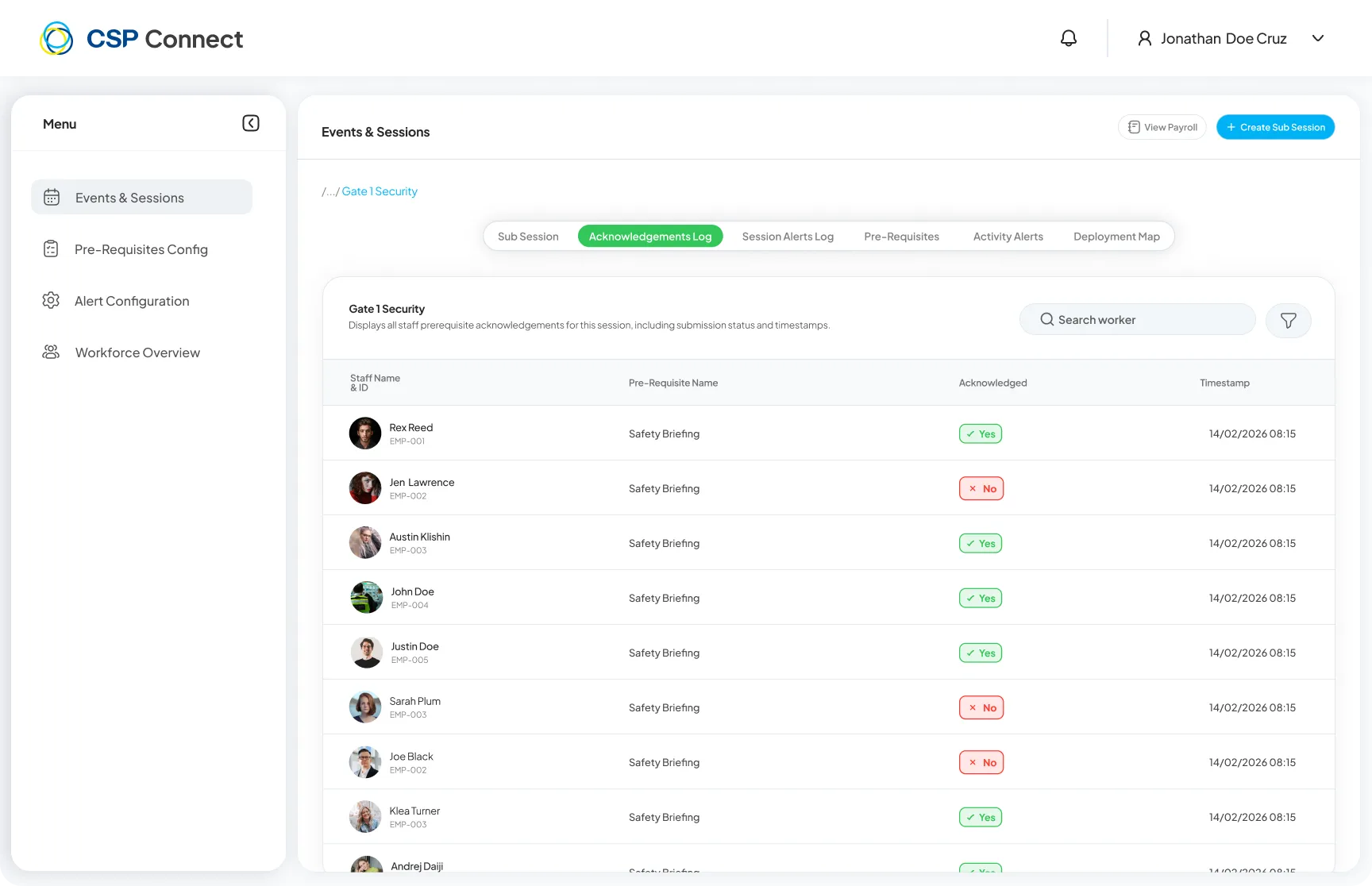
| Column | Description |
|---|---|
| Staff Name & ID | Worker’s name and system ID |
| Pre-Requisite Name | The pre-requisite that was acknowledged |
| Acknowledged | Yes/No acknowledgement status |
| Timestamp | Date and time of acknowledgement |
Activity Alerts
Section titled “Activity Alerts”The Activity Alerts tab shows every activity alert triggered by staff in real time. Use the Activity Alert Type dropdown to filter by alert type (e.g., Out of Area).
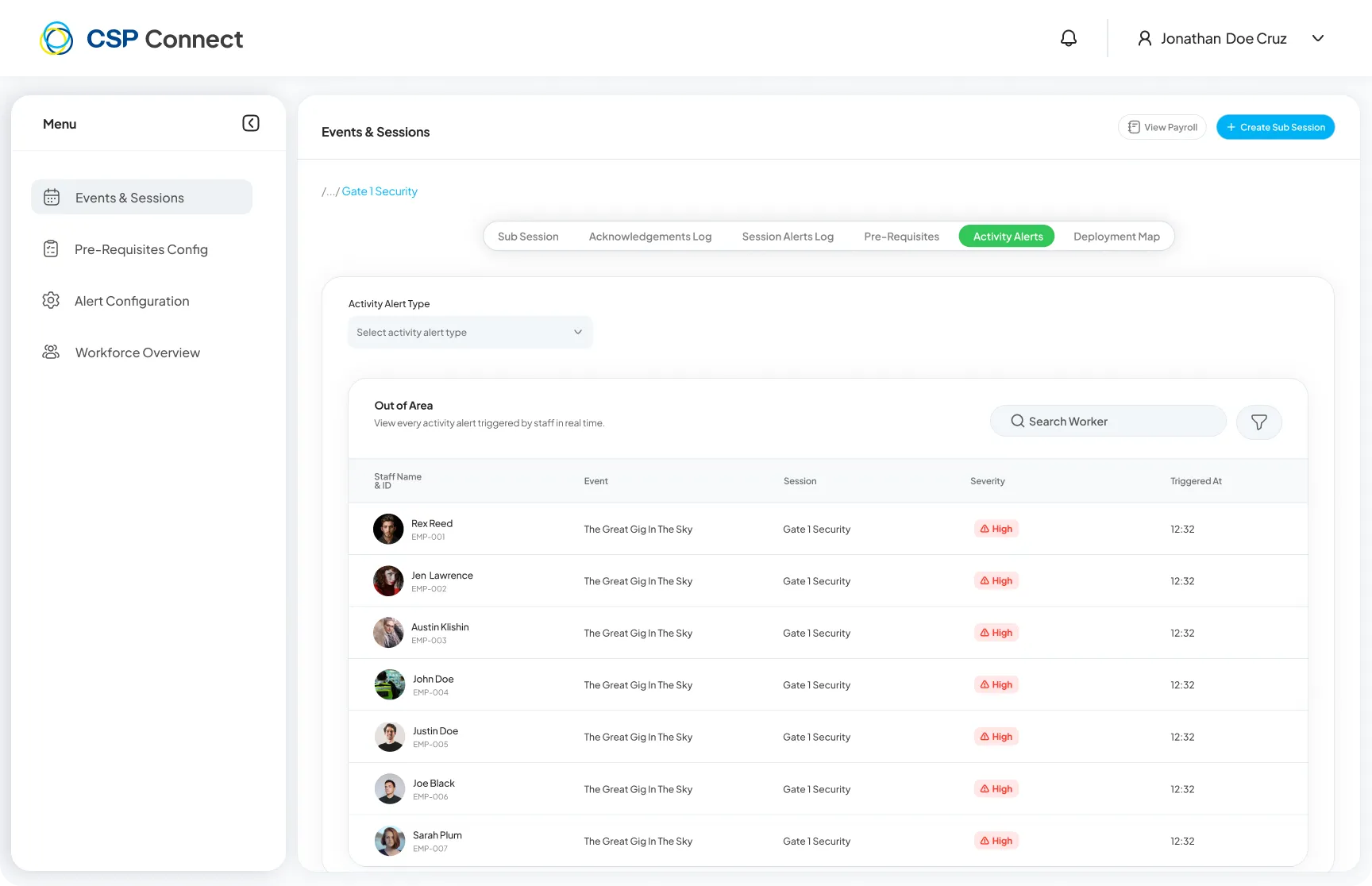
| Column | Description |
|---|---|
| Staff Name & ID | Worker who triggered the alert |
| Event | Event associated with the alert |
| Session | Session the alert was triggered in |
| Severity | Alert severity level (e.g., High) |
| Triggered At | Time the alert was triggered |
Break Grace Period
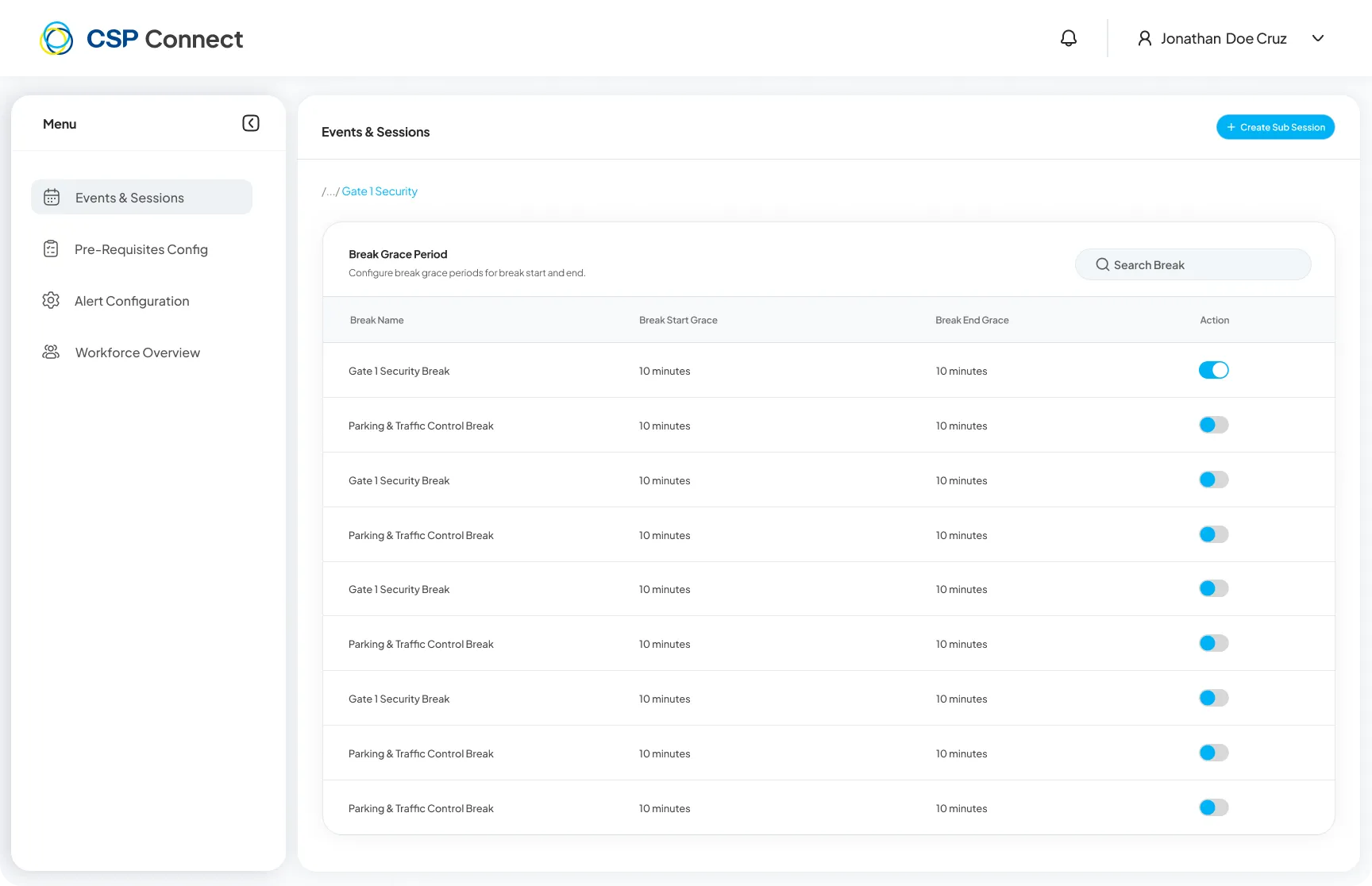
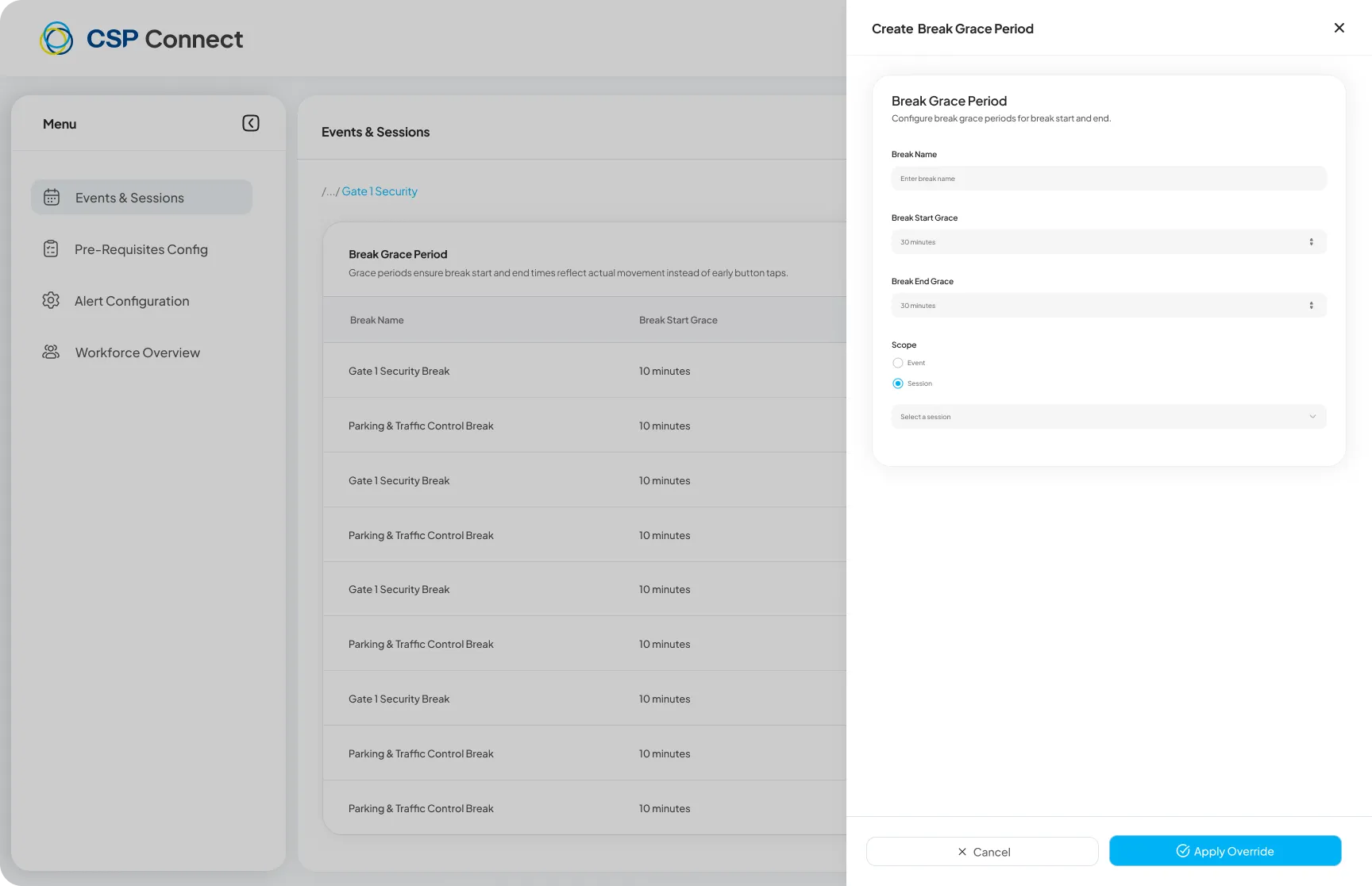
Section titled “Break Grace Period”The Break Grace Period section configures grace periods for break start and end times, ensuring recorded break times reflect actual movement instead of early button taps.
Creating or Editing a Break Grace Period
Section titled “Creating or Editing a Break Grace Period”Click + Create Sub Session or select an existing break to open the configuration panel.
| Field | Description |
|---|---|
| Break Name | Name for this break |
| Break Start Grace | Grace time allowed before break officially starts (in minutes) |
| Break End Grace | Grace time allowed before break officially ends (in minutes) |
| Scope | Apply to the full Event or a specific Session |