

Alert Configuration
The Alert Configuration interface allows you to define how and when alerts are triggered, who gets notified, and how alerts escalate when unresolved. You can also create event-specific overrides to customise alert behaviour for particular sessions.
Accessing Alert Configuration
Section titled “Accessing Alert Configuration”Navigate to Alert Configuration from the admin menu to view and manage alert settings.
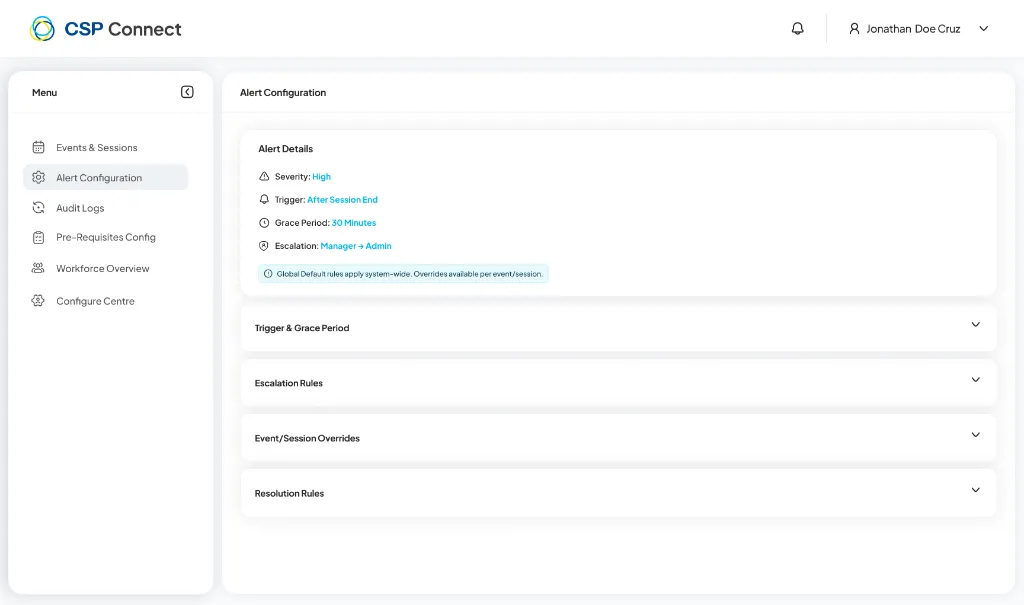
The interface is organised into collapsible sections:
- Trigger & Grace Period
- Escalation Rules
- Event/Session Overrides
- Resolution Rules
Alert Details
Section titled “Alert Details”At the top of the page, you’ll see a summary of the current alert configuration:
- Severity: The alert priority level (e.g., High, Medium, Low)
- Trigger: The condition that initiates the alert (e.g., After Session End)
- Grace Period: Time buffer before the alert is triggered (e.g., 30 Minutes)
- Escalation: Who receives notifications and at what level (e.g., Manager + Admin)
Alert Filtering
Section titled “Alert Filtering”Use the Search Event bar and Filter icon to narrow down the alert list.
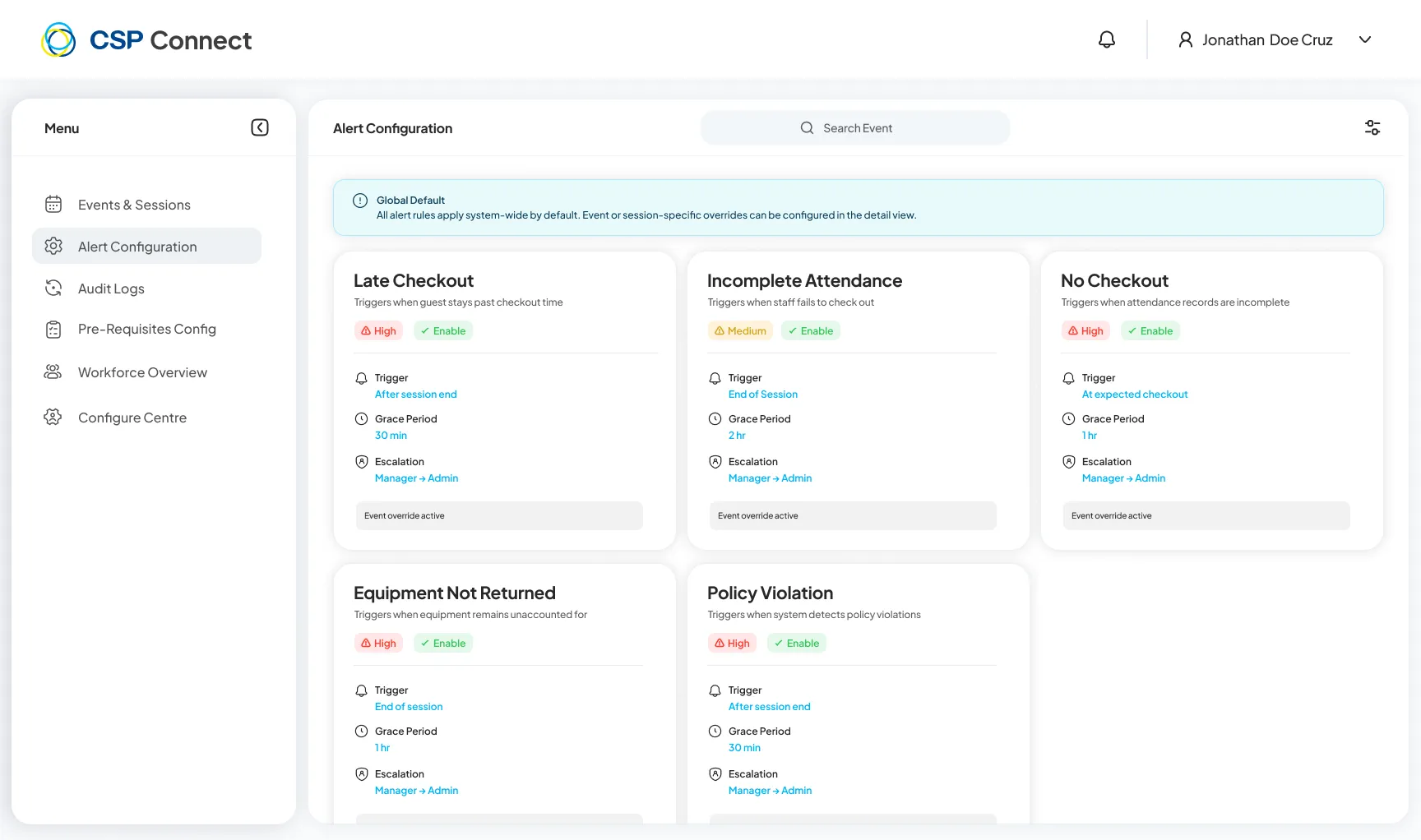
You can filter alerts by:
- Event Name: Search for specific engagements.
- Alert Type: View only specific triggers (e.g., only “Late Checkout”).
- Status: Filter by enabled or disabled alerts.
Manager reminder sequence
Section titled “Manager reminder sequence”A pre-configured sequence of session lifecycle alerts keeps managers informed and actionable throughout a session. Each alert is paired with a direct action — not just a notification.
| # | When it fires | What it does | Action available |
|---|---|---|---|
| 1 | 15 min before session start | Warns about workers who haven’t checked in yet | Bulk or individual force check-in from the alert |
| 2 | After session start | Reminder for workers still not checked in once the session has begun | Follow up or force check-in |
| 3 | Early checkout detected | Fires when a worker checks out before their booking end time | Revert the checkout if it was accidental |
| 4 | 15 min after booking end | Warning for workers who haven’t checked out yet | Prompt action before payroll is affected |
| 5 | 30 min after booking end | Triggers the extended hours approval flow | Manager must approve or reject the extended hours |
Applying alerts across session groups
Section titled “Applying alerts across session groups”When applying an alert to multiple sessions in a group, the system checks each session individually. If the alert is already configured on some sessions, only the remaining sessions without it are updated. A summary shows which sessions already had the alert before the action was applied.
Best Practices
Section titled “Best Practices”- Use grace periods to allow time for manual intervention before escalating alerts
- Configure multiple escalation levels to ensure critical alerts reach the right people
- Create event-specific overrides for high-priority or unusual events that require different alert handling
- Test notification channels to ensure SMS, email, and mobile notifications are working correctly
- Review active overrides regularly to ensure they’re still needed and properly configured