Confirmed
Workers with a confirmed booking for this session.
Casual Worker Management is accessed under Sessions > Casual Workers tab. It gives Admins and Managers a real-time view of who is assigned to a session, their role breakdown, and current attendance status.
The top of the page shows three at-a-glance stats for the session:
Confirmed
Workers with a confirmed booking for this session.
Actual
Workers who have checked in and are currently on-site.
Required
Total staff needed to meet the session’s requirements.
Below the stats, the Workforce Summary shows a breakdown of assigned workers by role, displayed as both a fill-rate list and a bar chart.
5/10 means 5 confirmed out of 10 required).4/3 shows as over 100%).Click Re-assign Roles to change a worker’s role within the session. This is useful when staffing requirements shift on the day or a worker needs to cover a different position.
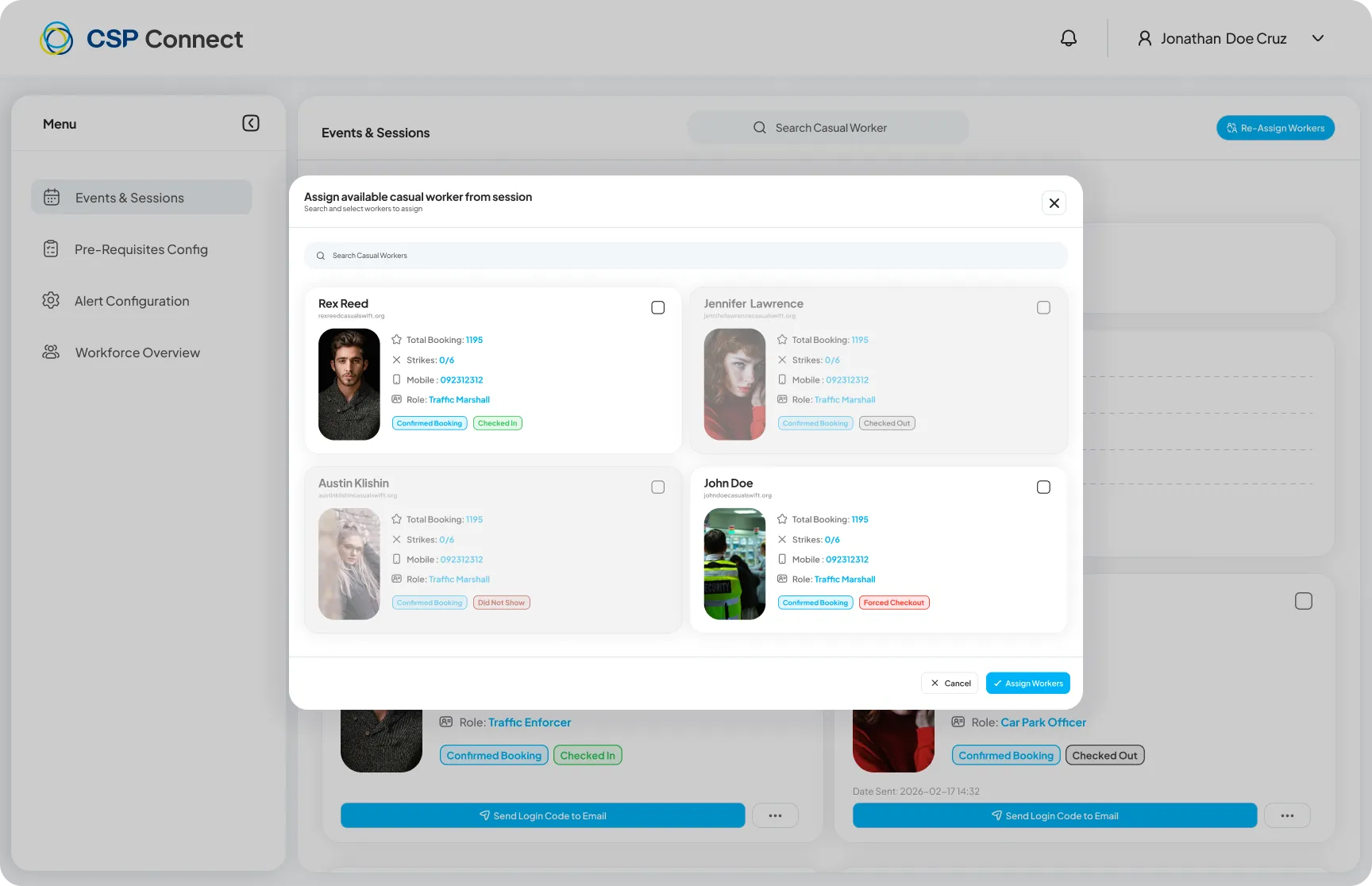
Each worker is represented by a card detailing their qualifications and history.
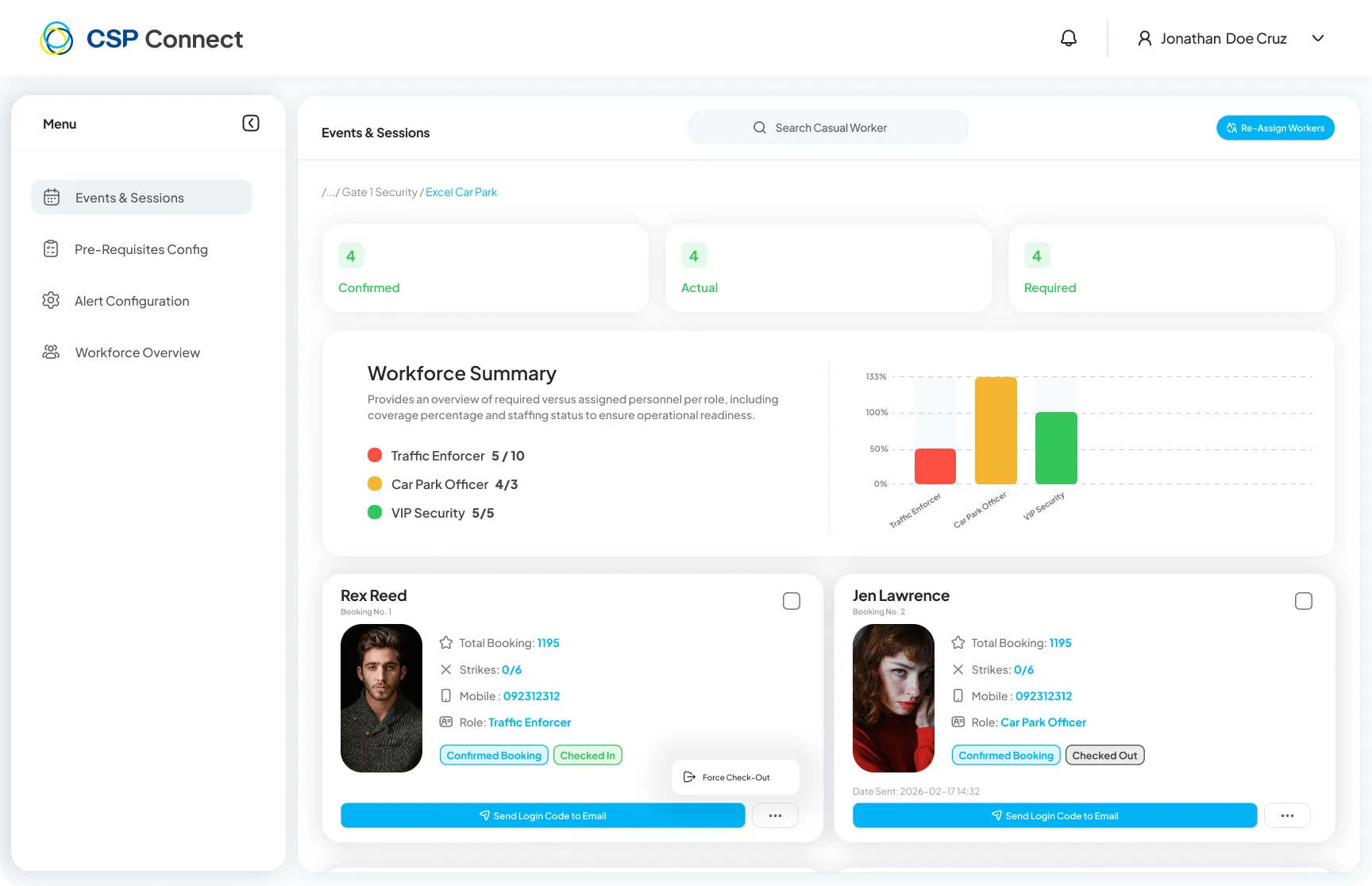
The casual worker list shows a live status label on each worker’s row. Labels update in real time without requiring a page refresh.
| Label | What it means |
|---|---|
| On Site | Worker has checked in and is currently on site |
| On Position | Worker is actively at their assigned position |
| On Break | Worker has started a break |
| Late Acknowledged | Worker has acknowledged a late check-in prompt |
| Liveness Requested | A liveness check has been sent and is awaiting response |
| Liveness Pending | Liveness check is in progress |
Use the Filter icon next to the search bar to find specific staff members using advanced criteria.
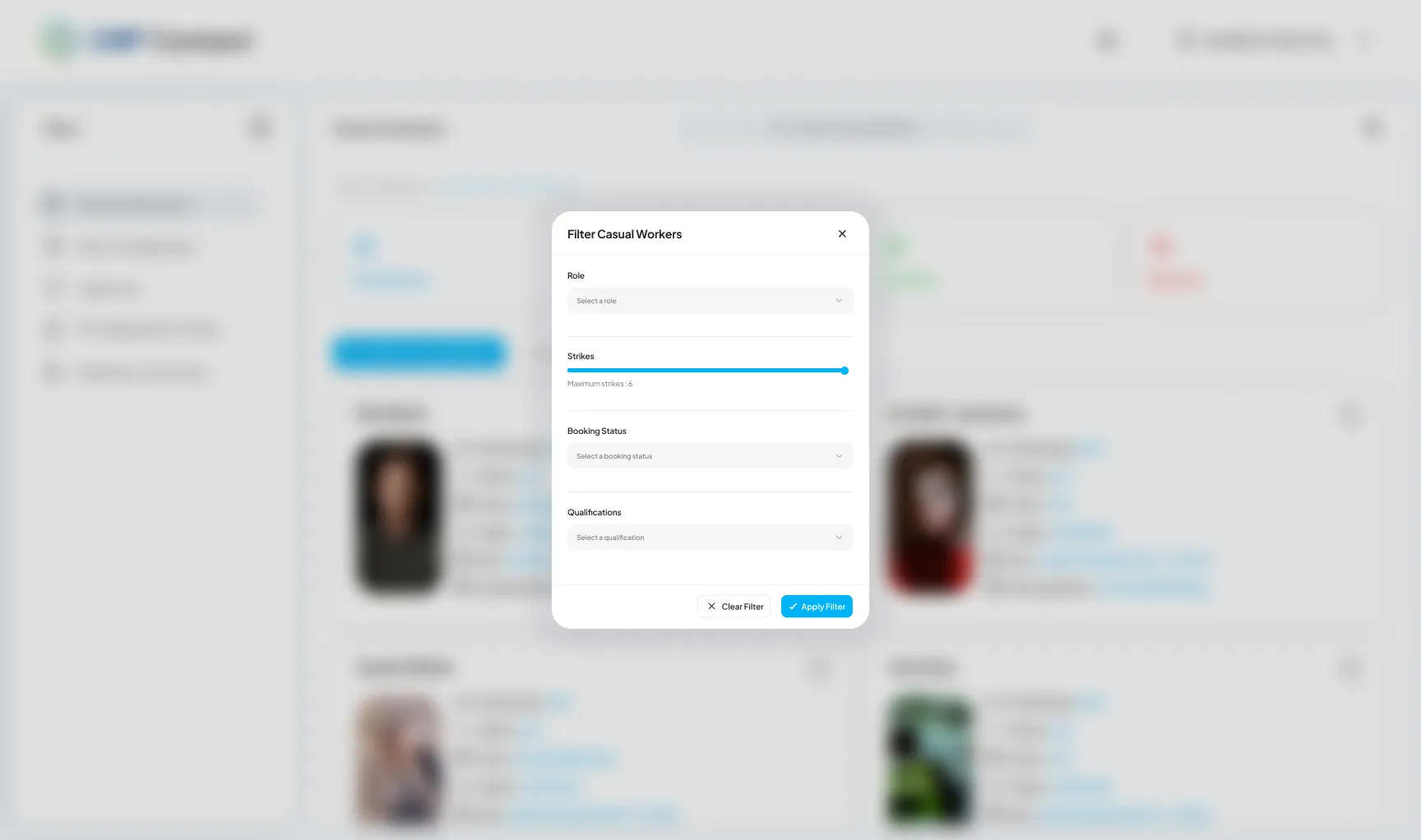
Role Filter by specific job roles (e.g., Security, Traffic Marshall).
Strikes Slider Filter workers based on their performance record. You can set the Maximum Strikes limit to exclude workers with poor attendance or conduct records.
Booking Status Narrow down by confirmed, pending, or available staff.
Qualifications Filter by specific skills or certifications required for the session.
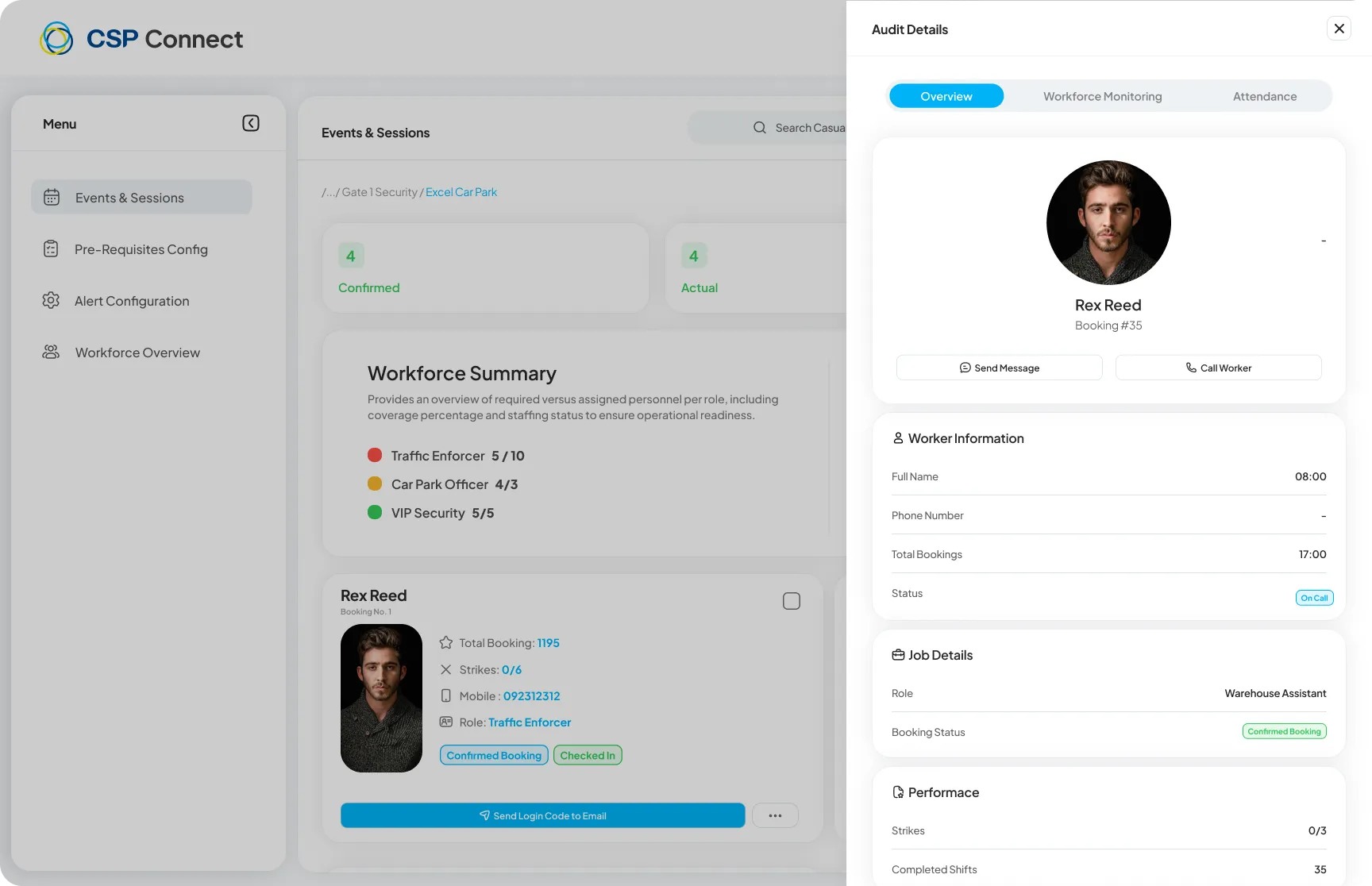
Click on any worker card to open the Audit Details panel. This panel has three tabs:
Displays the worker’s personal information, job details, and performance record for the session.
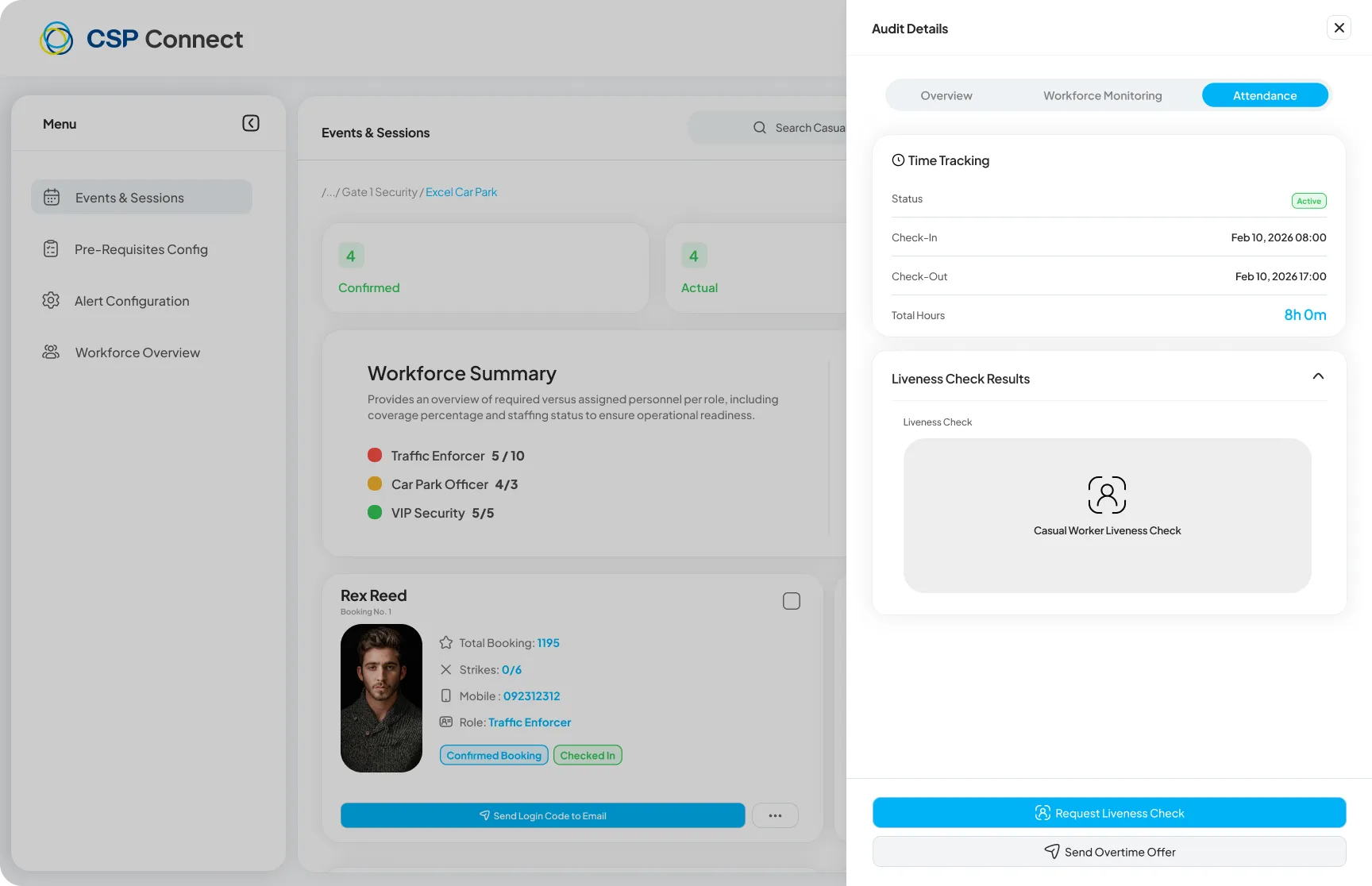
Shows time tracking details including check-in/out times, total hours, liveness check results, and actions to request a new liveness check or send an overtime offer.
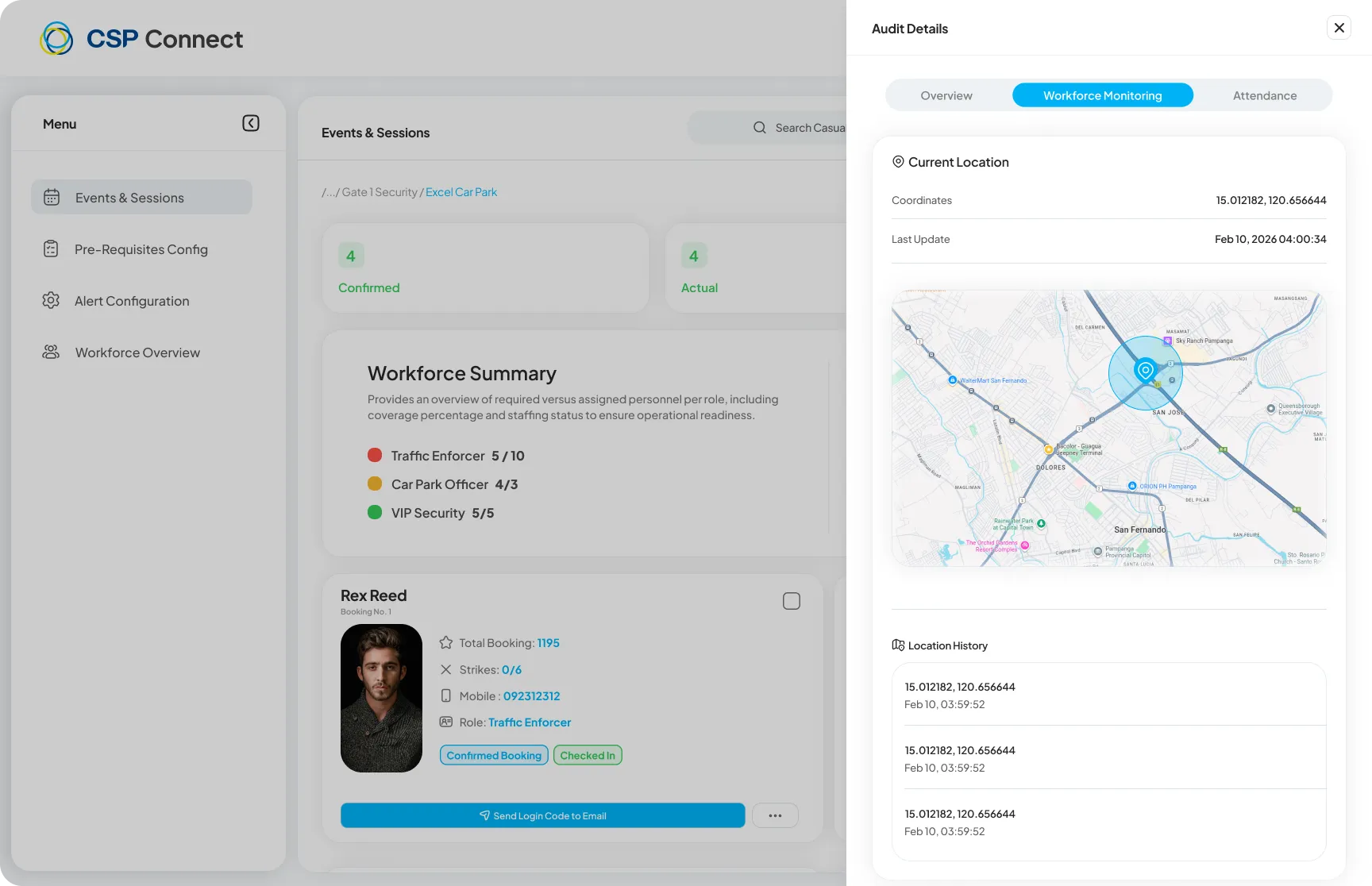
Displays the worker’s current GPS coordinates, last update time, and full location history for the session.
When a worker hasn’t checked in themselves, managers and admins can force check them in. Select the worker and choose one of three modes:
| Mode | What it does |
|---|---|
| Immediate | Checks the worker in right now. If triggered before their booking start time, the system defaults the check-in to the booking start time. |
| Minute offset | Enter a relative number of minutes — negative to backdate (e.g. -10 = “they were here 10 minutes ago”) or positive to forward-date. Use this when the worker was physically present but didn’t clock in themselves. |
| Booking start time | Sets the check-in to the worker’s scheduled booking start time. |
Direct timestamp entry is not permitted. Managers work in minutes relative to now or to the booking start, not a specific clock time.
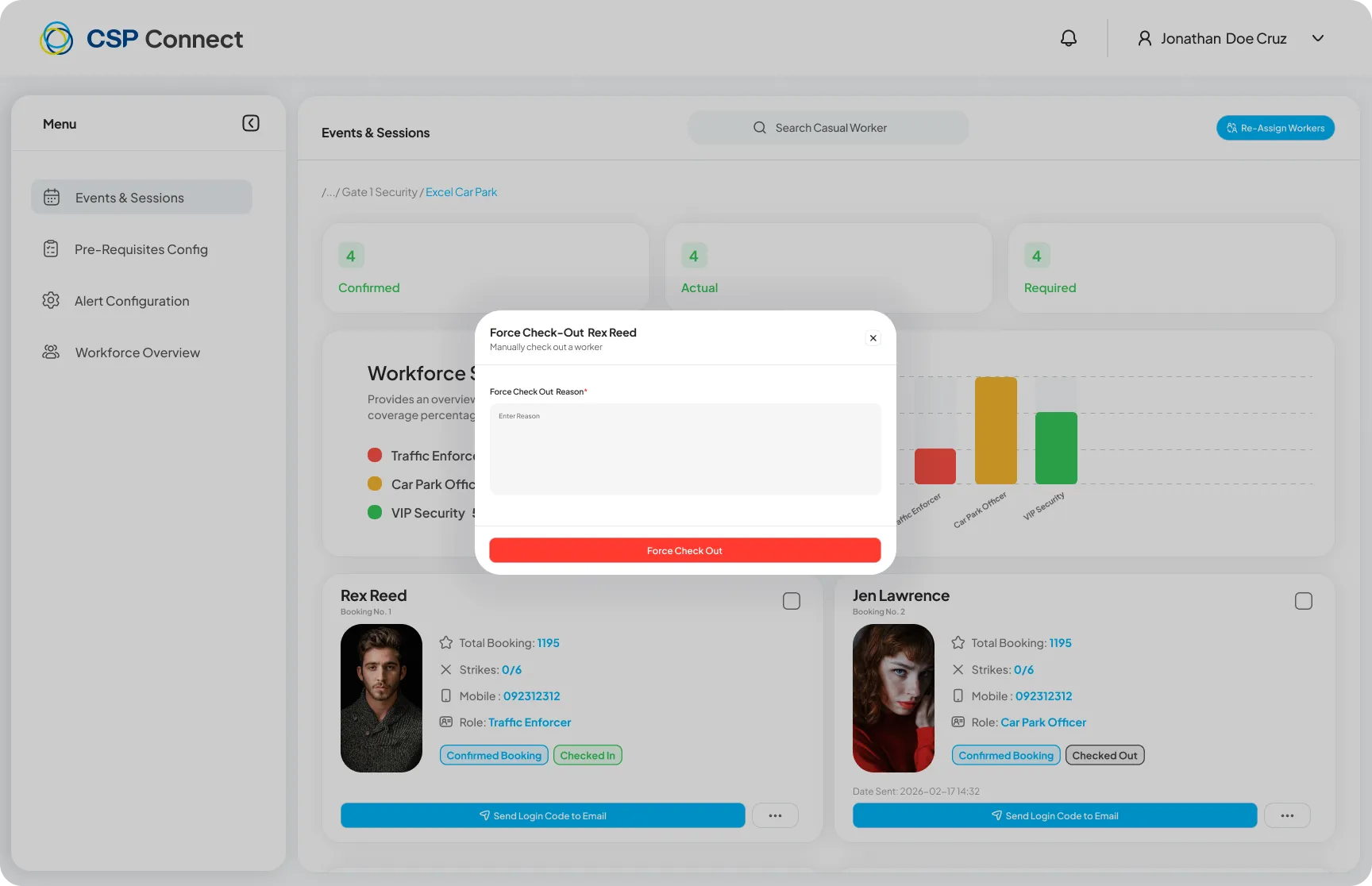
When a worker is still marked as checked in but needs to be manually checked out, managers and admins can force checkout through three modes:
| Mode | What it does |
|---|---|
| Immediate | Checks the worker out right now. |
| Scheduled timer | Manager sets a number of minutes from now — flexible, not fixed (e.g. 25 min, 40 min). The checkout fires automatically when the timer expires. |
| Booking end time | Sets the checkout to the worker’s scheduled booking end time. |
Manual timestamp entry is not permitted in any mode. Bulk selection is supported via per-row checkboxes. A mandatory reason is required for every force checkout action.
Managers can designate one worker per session as the Shift Champion directly from the casual worker list.
Once assigned, a badge appears on the worker’s row. A permanent entry is also added to the worker’s Key Indicators profile showing the session name, date, and reason.
Click View Payroll from the session view to access the Casual Worker Payroll Details screen, where you can review and approve hours for all workers in the session.
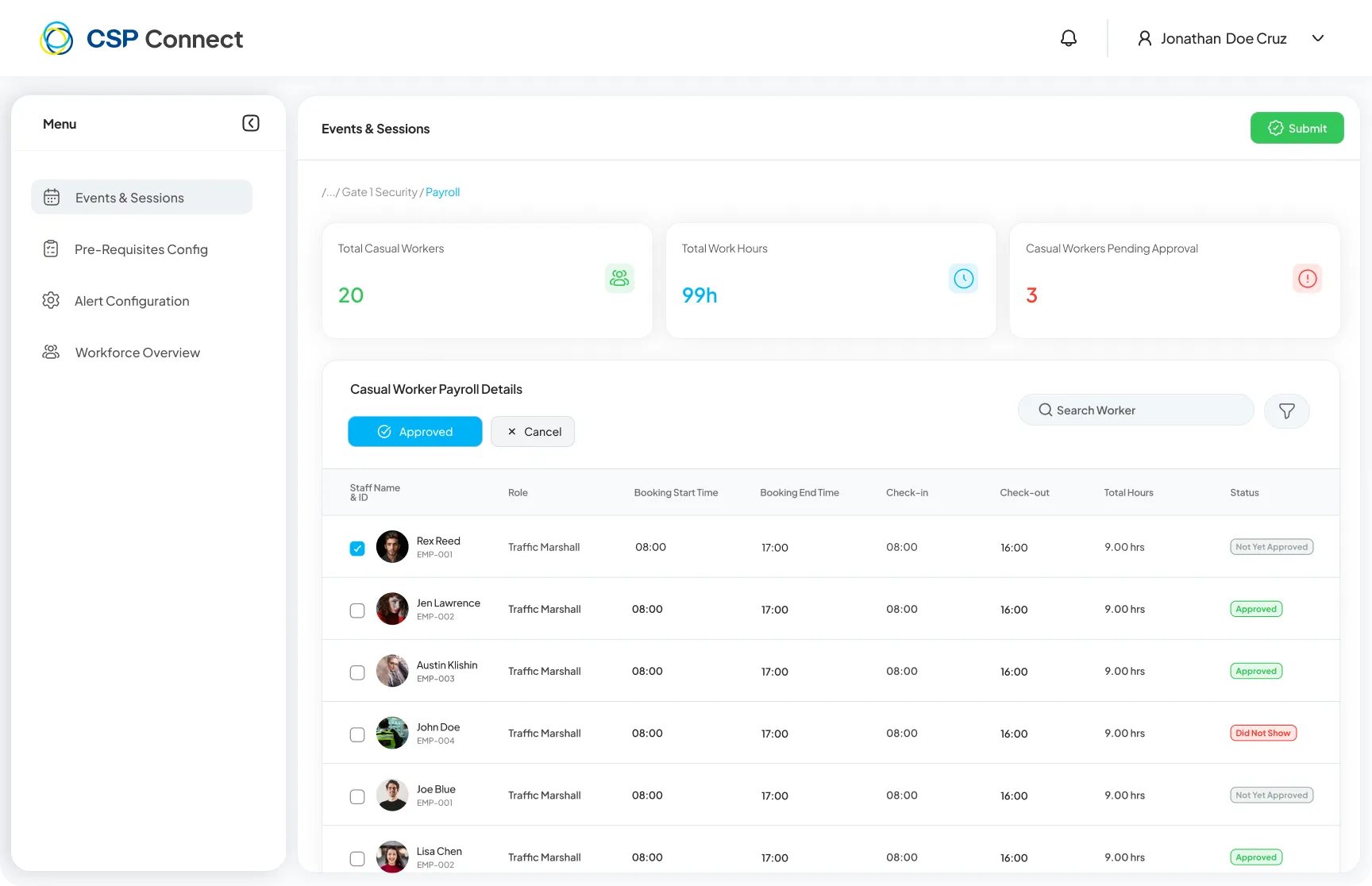
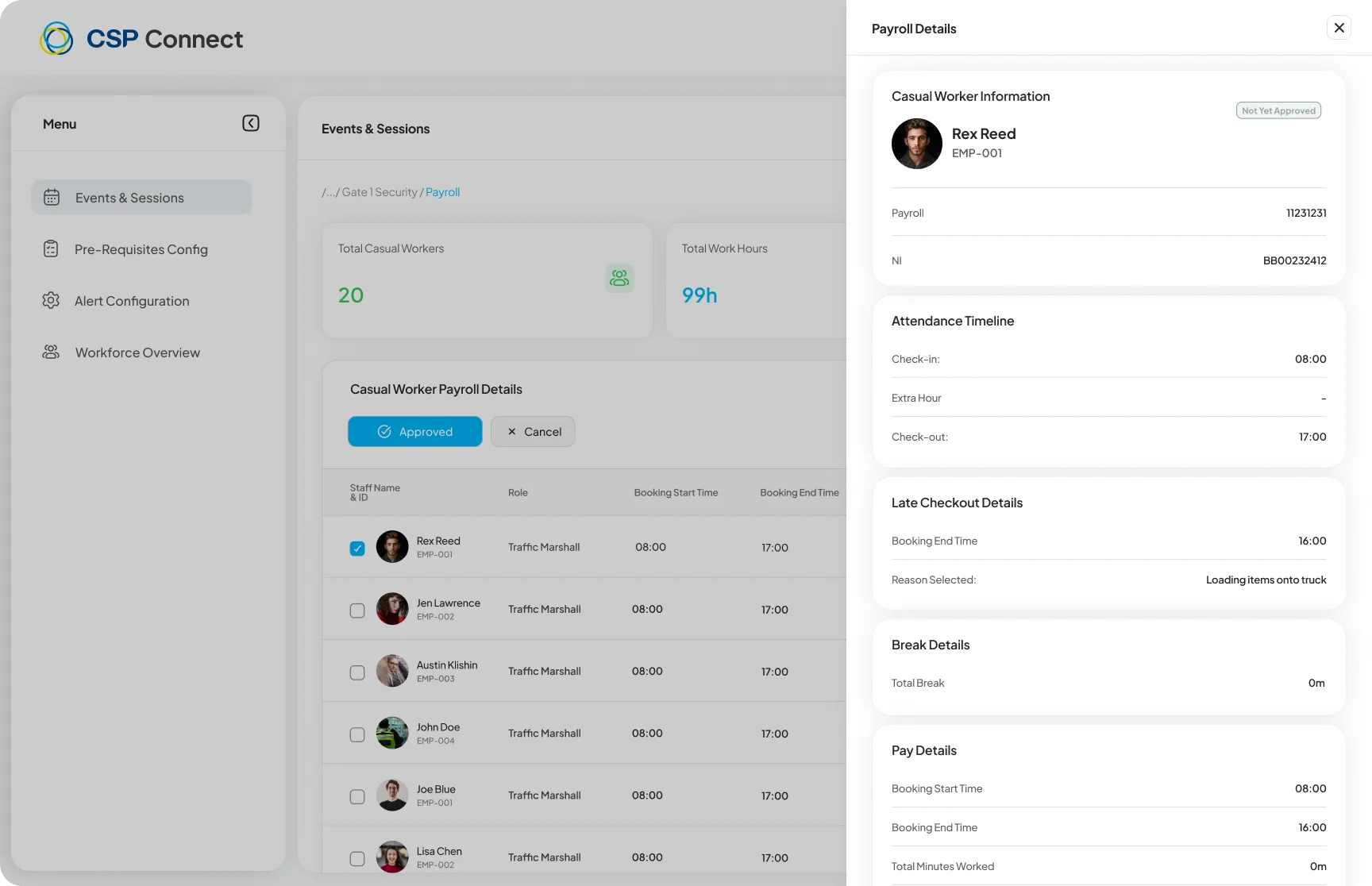
Click on any worker row to open their individual Payroll Details panel. The panel has two tabs:
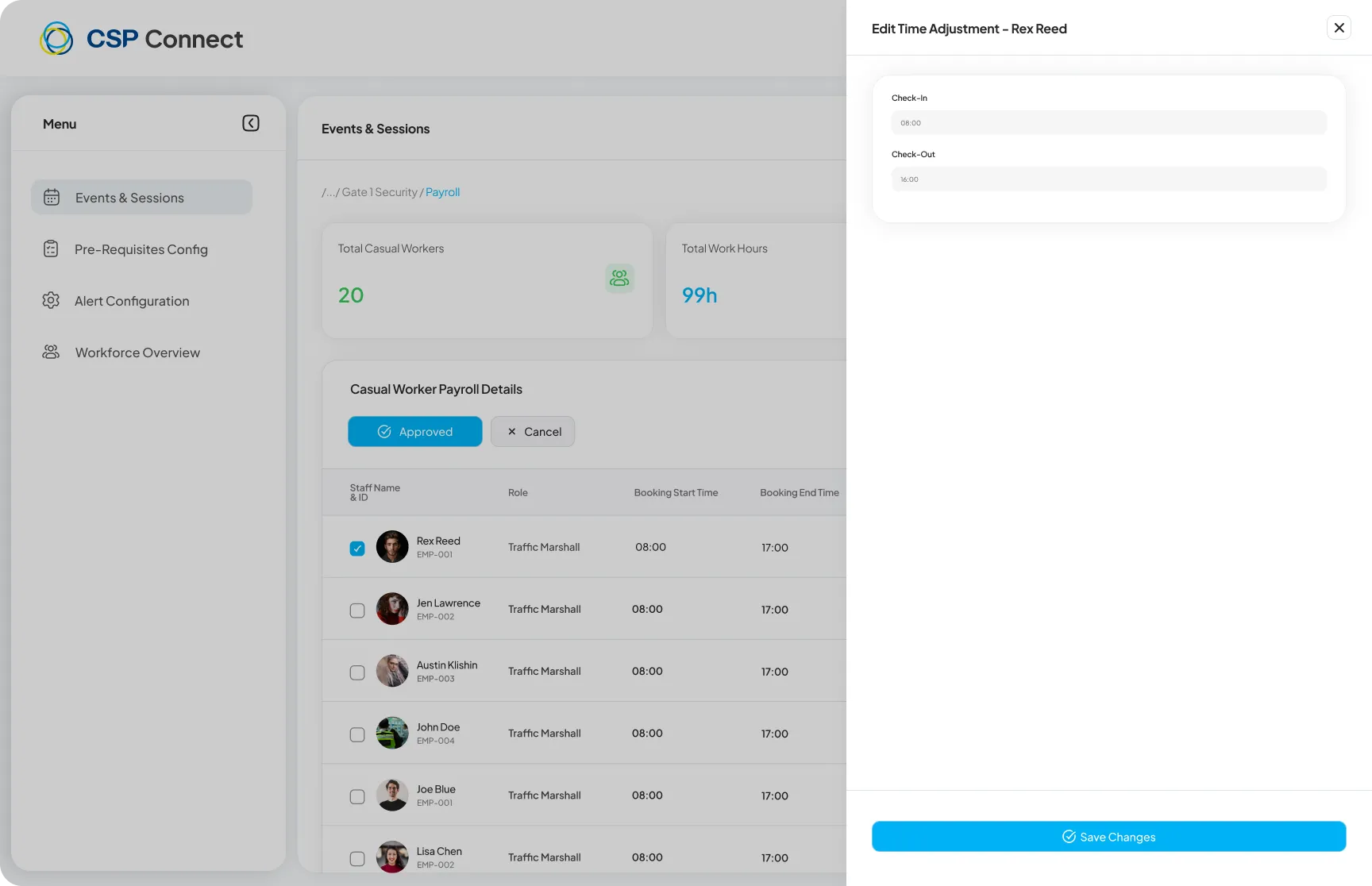
To adjust check-in or check-out times, click Edit Time Adjustment.
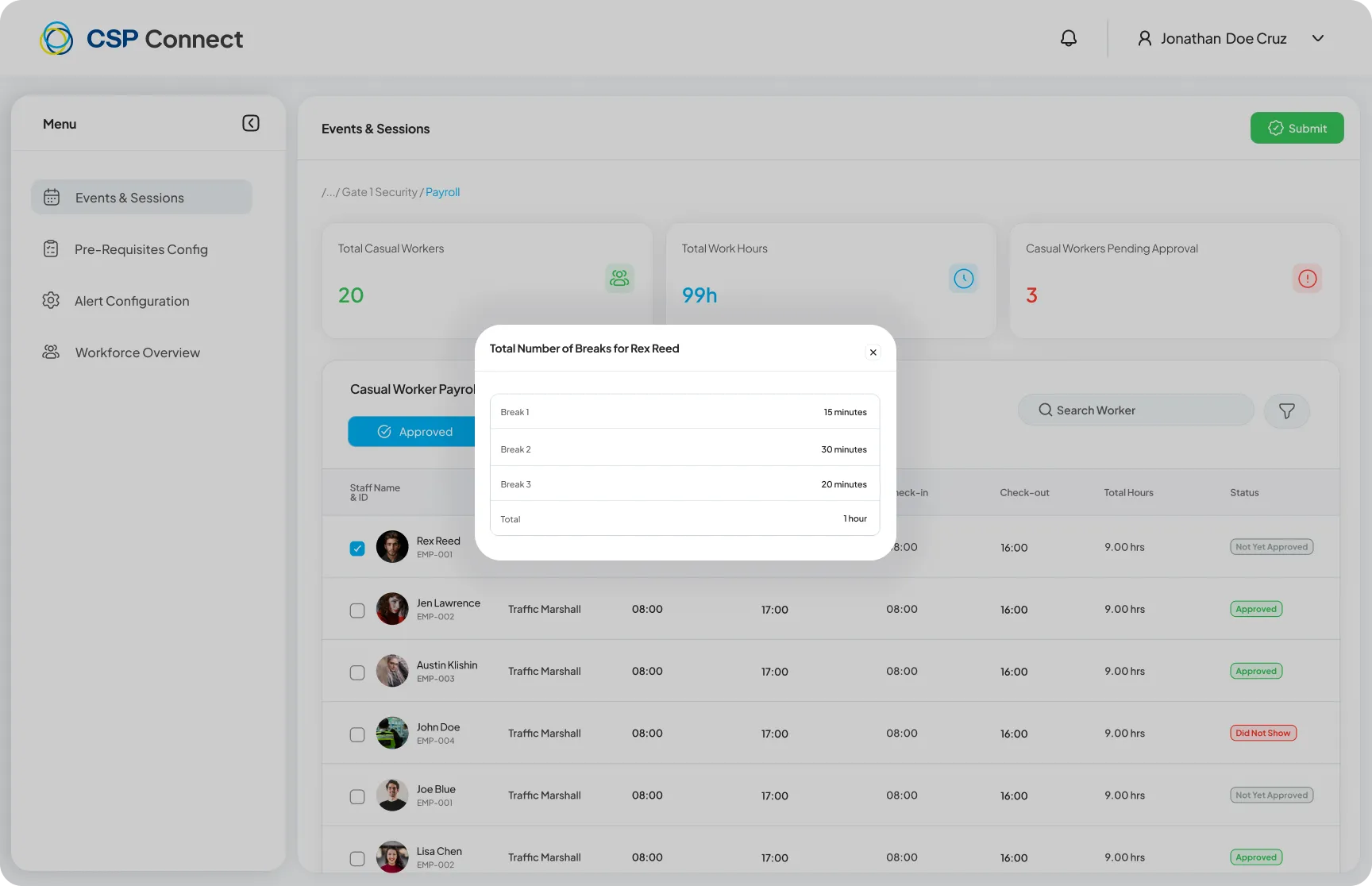
Click the break total on a worker row to see a breakdown of all breaks taken.
Payroll times are rounded before any approval logic is applied:
| Time | Rounding rule |
|---|---|
| Check-in | Rounded based on a first-minute threshold rule to ensure consistency across payroll records |
| Check-out | Rounded to the booking end time |
These rounded times are used for all payroll calculations, not the raw check-in and check-out times.
Records where the rounded check-in and check-out both fall within the booking window (up to 30 minutes past the booking end) are automatically approved with no manager action required.
Records where checkout exceeds the booking end by more than 30 minutes surface for manual manager review. Use the Approve or Reject buttons on the worker’s row:
Select multiple workers using the per-row checkboxes to apply actions in bulk. Available bulk actions: Approve, Reject, and Mark as Did Not Show. A mandatory reason is required when bulk approving.
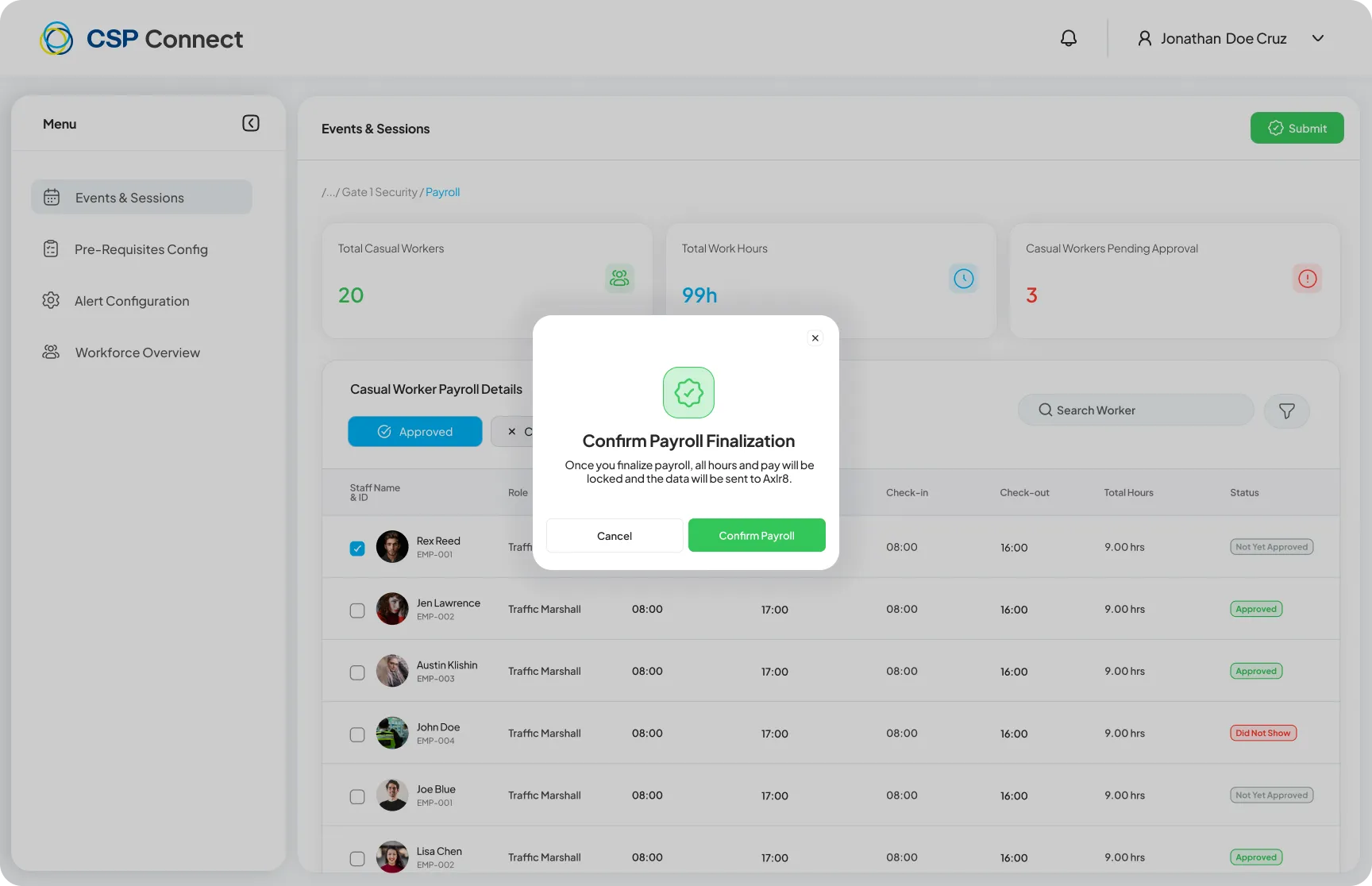
Once all workers are approved, click Submit to finalise the payroll. A confirmation prompt will appear before the data is locked and sent to Axlr8.