

Event/Session Overrides
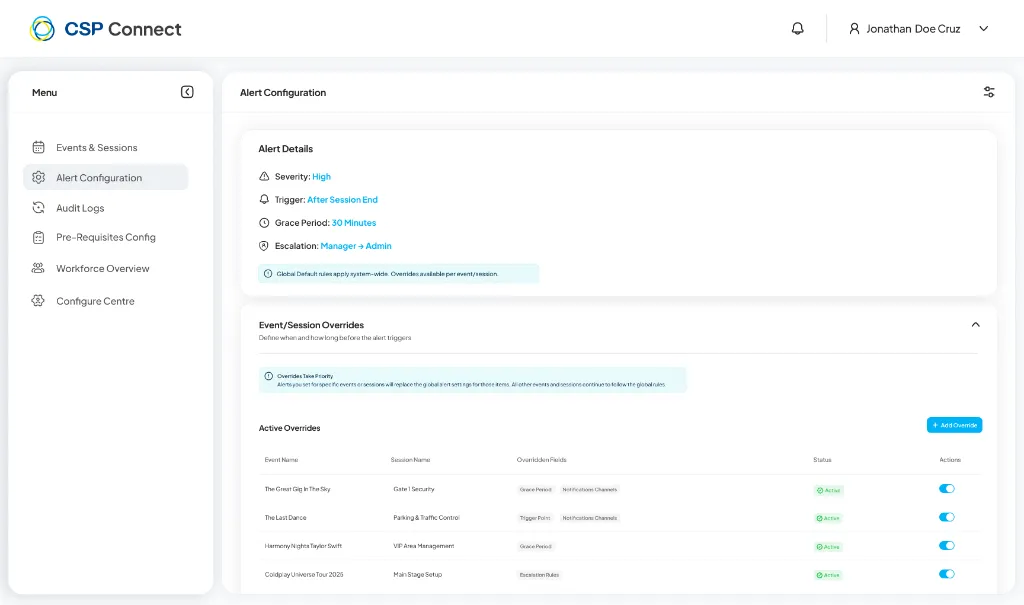
Overrides allow you to apply event-specific or session-specific alert rules that differ from the global defaults.
Active Overrides
Section titled “Active Overrides”The Active Overrides table displays all current overrides with the following information:
- Event Name – The event this override applies to
- Session Name – The specific session (if applicable)
- Override Rules – Which rules are overridden (e.g., Grace Period, Notification Channels)
- Status – Whether the override is Active or Inactive
- Actions – Toggle to enable/disable the override
Adding an Override
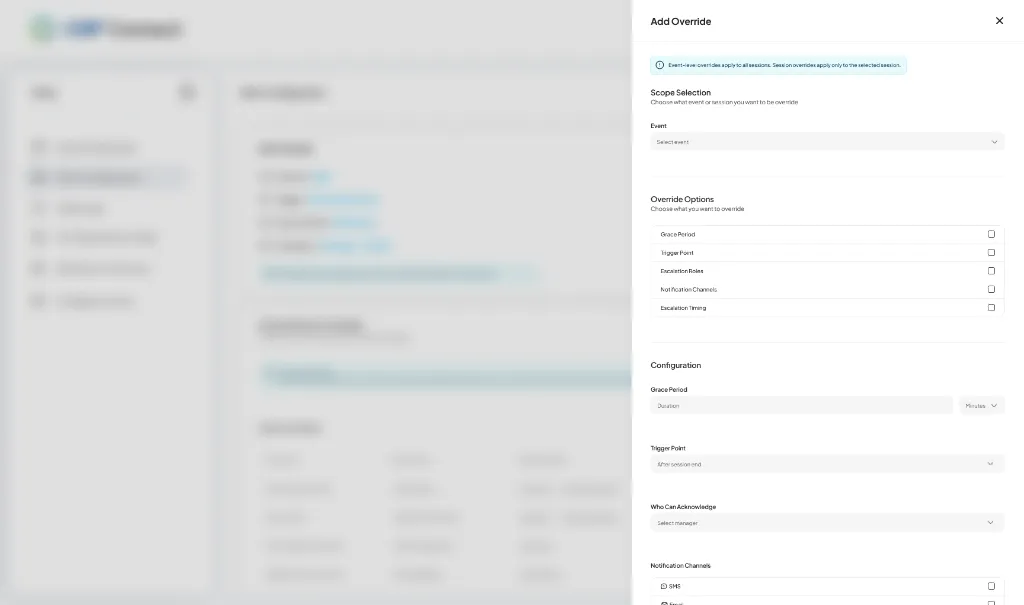
Section titled “Adding an Override”Click + Add Override to create a new event or session-specific override.
-
Select Scope
Choose which event or session you want to override:
- Event – Select from the dropdown list
-
Choose Override Options
Select which alert settings to override:
- Grace Period
- Trigger Point
- Escalation Rules
- Notification Channels
- Escalation Timing
-
Configure Settings
For each selected override option, configure the specific values:
- Grace Period: Set custom duration (e.g., 30 Minutes)
- Trigger Point: Choose when the alert triggers (e.g., After session end)
- Who Can Acknowledge: Select user roles with acknowledgement permissions
- Notification Channels: Enable SMS and/or Email
-
Save Override
Click Save to apply the override to the selected event/session.